
Fix
Video to GIF shortcut not working: fixes and alternatives
Quick answer
Most failures come from four things: Shortcuts has no access to Photos (Settings > Privacy & Security > Photos > Shortcuts), the video is still in iCloud and needs to download first, the clip is too long for the shortcut to process, or Shortcuts blocks large data (Settings > Apps > Shortcuts > Advanced > Allow Sharing Large Amounts of Data). Trim the video shorter and try again; if you need control over size and quality, use a dedicated GIF app.
The Video to GIF shortcut from Apple's Shortcuts Gallery is a great free tool, but it runs every frame through a simple pipeline with no settings, so long or high-resolution clips can fail silently, take ages or produce enormous files.
Here are the fixes, in order of how often they help.
Fixes
Try these one at a time:
- Give Shortcuts photo access: Settings > Privacy & Security > Photos > Shortcuts > Full Access.
- Download the video first: open it in Photos and wait until it plays without a loading circle.
- Trim a long video in Photos (Edit) before running the shortcut, or pick a shorter clip.
- Allow large data: Settings > Apps > Shortcuts > Advanced > Allow Sharing Large Amounts of Data.
- Remove the shortcut and add it again from the Gallery if you edited its actions.
- Restart the iPhone if Shortcuts stops responding; low free storage can also make it fail.
When the shortcut works but the GIF is bad
Huge files, choppy motion or the wrong framing are not bugs: the shortcut has no frame rate, crop or size controls unless you edit its actions. An app with those settings fixes this without building your own shortcut.
Alternative: make the GIF in Make Video to GIF
Same clip, with settings and progress.
-
1
Open the video
Pick it in Make Video to GIF, or share it from Photos into the app.
-
2
Trim
Tap Edit Video and keep the seconds you need.
-
3
Adjust
Set FPS, crop and loop in GIF settings and check the estimated size.
-
4
Convert
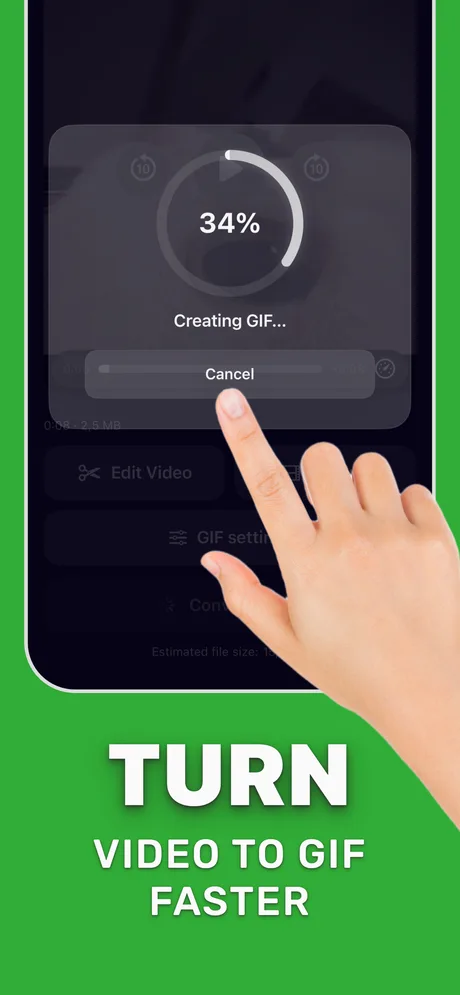
Tap Convert to GIF; a progress ring shows how far along it is, and you can cancel.
-
5
Share or save
Send it from the share sheet or save it to Photos.
Do it in Make Video to GIF
Free on the App Store. Pick a clip, trim, tune, export.
Tips
- 4K or 60 FPS videos are the most likely to fail in the shortcut; trim them first.
- If the shortcut saves a GIF that won't move, see the guide on GIFs not working on iPhone.
- Keep both: the shortcut for quick throwaway GIFs, an app when size and quality matter.
Questions people also ask
Why does the Video to GIF shortcut do nothing?
Usually missing photo access or a video that is still downloading from iCloud. Check both, then try a short clip.
Why is the shortcut's GIF so big?
It keeps the full resolution and frame rate. Trim the clip shorter or use an app that lets you lower FPS and crop.
Is there a better free alternative?
The Make GIF shortcut handles Live Photos and bursts. For videos with size control, use a dedicated GIF app.
Only convert videos you have the right to share. Make Video to GIF is an independent app and is not affiliated with Apple, GIPHY, Discord or Slack.