
Live Photos
How to turn a Live Photo into a GIF on iPhone
Quick answer
Quickest: add the free Make GIF shortcut from the Shortcuts Gallery and run it on the Live Photo. For control over the result, open the Live Photo in Photos, tap Share and choose Save as Video, then open that video in Make Video to GIF to trim, crop, set the frame rate and loop, and export the GIF.
A Live Photo records about 1.5 seconds before and after the shot, which is often a better GIF than the photo itself: a laugh, a jump, a dog shaking off water.
Photos' own Loop and Bounce effects make it play like a GIF on your iPhone, but when you share it, other apps may receive a video or a still photo. To get a real GIF file you need one of the methods below.
Method 1: the Make GIF shortcut
Apple's Shortcuts Gallery includes a Make GIF shortcut that accepts Live Photos and bursts:
- Open Shortcuts, tap Gallery, search "Make GIF" and add it.
- In its settings, turn on Show in Share Sheet.
- In Photos, open the Live Photo, tap Share and choose Make GIF.
- The GIF is saved to your library, in Recents and the Animated album.
Method 2: save as video, then convert
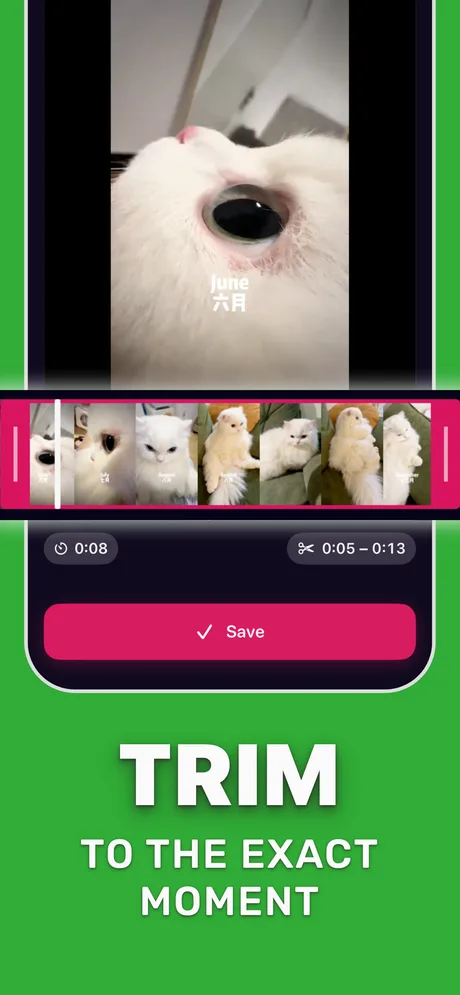
This gives you full control. In Photos, open the Live Photo, tap Share and choose Save as Video. The video appears next to the photo; open it in Make Video to GIF to trim the moment, crop, set FPS and loop count, and see the size before you export.
Method 3: Loop or Bounce (playback only)
In Photos, open the Live Photo and switch the effect from Live to Loop or Bounce. It plays like a GIF on your iPhone and in some Apple apps, but it is still a Live Photo, so it is not the right choice when you need a .gif file for Discord, Slack or the web.
Step by step: Live Photo to GIF with full control
Method 2 in detail.
-
1
Open the Live Photo
Find it in Photos (Albums > Media Types > Live Photos lists them all).
-
2
Save as Video
Tap Share and choose Save as Video.
-
3
Open it in Make Video to GIF
Pick the new video in the app, or share it from Photos into Make Video to GIF.
-
4
Trim, crop and set the loop
Keep the best second or two, crop to the subject and choose an infinite loop.
-
5
Convert and share
Tap Convert to GIF, then share it or save it to Photos.
Do it in Make Video to GIF
Free on the App Store. Pick a clip, trim, tune, export.
Tips
- Live Photos are short, so the frame rate matters: 15 FPS keeps motion smooth without a big file.
- Pick a Live Photo where the camera stayed still; shake shows up as a jittery loop.
- For a seamless loop, trim to a stretch that starts and ends in similar positions.
Questions people also ask
Why does my Live Photo send as a still image?
Many apps only accept the key photo. Convert the Live Photo to a GIF file first, then send the GIF.
Can I turn several photos into a GIF?
The Make GIF shortcut accepts bursts and multiple photos. For video-based GIFs, convert a video instead.
How long is a Live Photo GIF?
Up to about 3 seconds, the length of the Live Photo recording.
Only convert videos you have the right to share. Make Video to GIF is an independent app and is not affiliated with Apple, GIPHY, Discord or Slack.