
Video to GIF
How to make a GIF from a video on iPhone
Quick answer
For a quick GIF with no app, add the free Video to GIF shortcut from the Gallery in the Shortcuts app, run it, pick the video, trim it and tap Save. When you need control over the result (frame rate, crop, loop count, file size), use Make Video to GIF: pick the video, trim it, open GIF settings, tap Convert to GIF and share the file. Both methods make the GIF on your iPhone without uploading the video.
iPhone has no "Save as GIF" button in Photos, but it can still make a GIF from any video, screen recording or camera clip. There are two practical ways: a free shortcut that Apple publishes in the Shortcuts Gallery, and a dedicated app.
The shortcut is enough for an occasional reaction loop. The moment the GIF is too big to send, plays too fast, or shows the wrong part of the frame, you need the controls a GIF app adds. This guide shows both, step by step.
Method 1: the free Video to GIF shortcut
The Shortcuts app is built into iOS. Its Gallery includes a ready-made shortcut called Video to GIF:
- Open the Shortcuts app and tap Gallery.
- Search for "Video to GIF" and tap Add Shortcut.
- Go back to Shortcuts and tap Video to GIF to run it.
- Pick a video, drag the handles to trim it and tap Save.
- The GIF is saved to Photos. Open it and tap Share to send it.
The shortcut does not show the file size and offers no frame rate, crop or loop options in the run itself; changing those means editing the shortcut's actions.
Method 2: Make Video to GIF, when size and quality matter
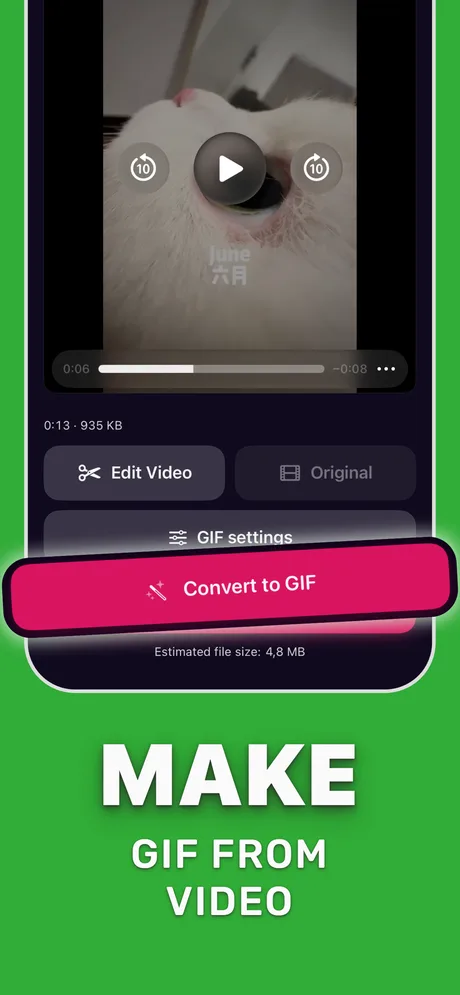
Make Video to GIF is built around the settings that decide how a GIF looks and how big the file is. You can start in the app, or open the video in Photos, tap Share and send it straight to Make Video to GIF.
Use it when the GIF has to fit an upload limit, when only part of the frame matters (a button in a screen recording, a face in a group clip), or when you want the loop to play a fixed number of times.
| Setting | What it changes |
|---|---|
| Trim | How many seconds you keep. The biggest lever on file size. |
| Crop | The part of the frame you keep, with aspect presets (square, portrait, wide). |
| Frames per second | Smoothness versus size. 10–15 FPS suits most reactions; fast motion needs more. |
| Loop count | Infinite loop, or a fixed number of plays. |
| Encoder | Smaller file, or more palette detail for gradients and skin tones. |
Which method should you use?
Use the shortcut for a one-off loop you will send in Messages, where size rarely matters. Use an app when the GIF is going to Discord, Slack, a forum, a README or an email, where size limits and readability count, or when you make GIFs often enough that re-editing a shortcut gets old.
Avoid online converters for personal videos: they upload the whole file to someone else's server before you get the GIF back.
Step by step: make a GIF in Make Video to GIF
About a minute for a short clip.
-
1
Pick the video
Open Make Video to GIF and choose a video from your library. Or, in Photos, tap Share on the video and choose Make Video to GIF.
-
2
Trim to the moment
Tap Edit Video and drag the handles on the frame strip so only the seconds you need stay selected, then tap Save.
-
3
Adjust GIF settings
Open GIF settings to crop, set frames per second, loop count and encoder. Watch the estimated file size below the Convert button.
-
4
Convert to GIF
Tap Convert to GIF. A progress ring shows how far the export is, and you can cancel a long export.
-
5
Share or save
Send the GIF from the share sheet to Messages, Mail, AirDrop or another app, or save it to Photos.
Do it in Make Video to GIF
Free on the App Store. Pick a clip, trim, tune, export.
Tips for a better GIF
- Keep it short: 2–5 seconds is the sweet spot for a reaction or a UI demo.
- Crop before lowering the frame rate; cutting pixels saves size without making motion choppy.
- Talking-head clips rarely need more than 10 FPS. Sports and game clips look better at 20 FPS or more.
- Stable lighting in the source video gives fewer color bands in the GIF.
Questions people also ask
Can the Photos app save a video as a GIF?
No. Photos can play GIFs and turn Live Photos into Loop or Bounce effects, but it has no export to GIF for videos. Use the Video to GIF shortcut or an app.
Why does my GIF not move in Photos?
Photos shows GIFs in the Animated album and plays them there. In some views it shows a still thumbnail; open the GIF to see it play, and share the file (not a screenshot) to keep the animation.
Does making a GIF on iPhone upload my video?
Not with the shortcut or Make Video to GIF: both create the GIF on the iPhone. Online converter websites do upload the video.
How long can a GIF be?
There is no hard limit, but size grows quickly with length, resolution and frame rate. Most chat apps and forums work best with GIFs of a few seconds and a few megabytes.
Only convert videos you have the right to share. Make Video to GIF is an independent app and is not affiliated with Apple, GIPHY, Discord or Slack.