Discord
How to make a GIF for Discord on iPhone
Quick answer
Make the GIF from your video, keep it under Discord's upload limit (20 MB per file on a free account, 50 MB with Nitro Basic, 500 MB with Nitro), then send it from the iOS share sheet or attach it with the + button in the Discord app. In Make Video to GIF, trim to a few seconds, crop to the action and set 12–15 FPS; the estimated size tells you whether it fits before you export.
Discord plays GIFs inline and loops them forever, which makes them perfect for reactions, clips from a game or a quick UI demo. The catch is the upload limit: a raw phone video turned into a GIF easily goes past it.
Discord raised the free upload limit from 10 MB to 20 MB per file in August 2026. Here is how to land under it on iPhone without the GIF turning into a blurry mess.
Discord's size limits
The limit is per file and depends on your account, not on the server:
| Account | Max upload per file |
|---|---|
| Free | 20 MB |
| Nitro Basic | 50 MB |
| Nitro | 500 MB |
Free limit as of August 2026, when Discord raised it from 10 MB. Server boosts can raise limits for everyone in that server.
Settings that work well in Discord
Discord shows GIFs in a chat column a few hundred pixels wide, so full 1080p frames are wasted. A crop around the action and 12–15 FPS keep reactions readable and small. Game clips with fast motion look better at 20 FPS or more; trim them shorter to pay for it.
Upload from iPhone
After export, tap Share in Make Video to GIF and choose Discord, or save the GIF to Photos and attach it in Discord with the + button next to the message field. Either way Discord receives the GIF file and plays it inline.
Step by step: a Discord-ready GIF
About a minute from clip to chat.
-
1
Pick the clip
Open Make Video to GIF and choose the video, or share a screen recording into the app.
-
2
Trim to the reaction
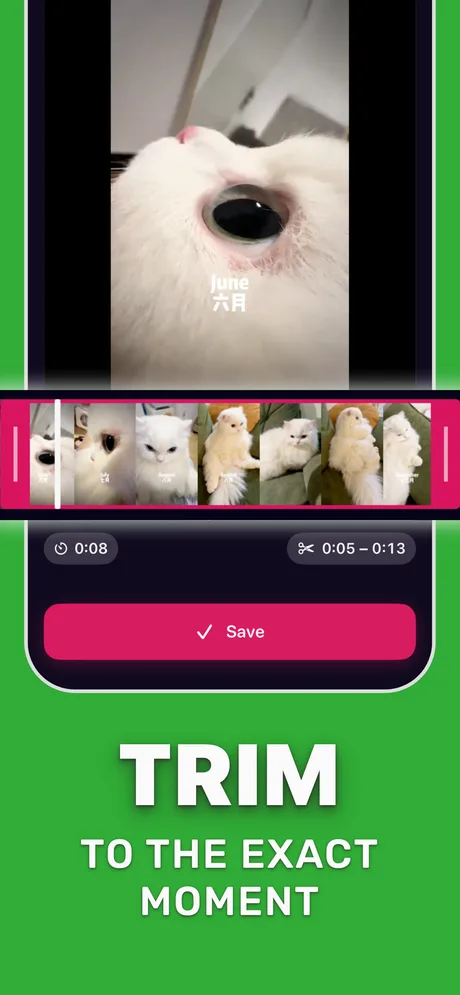
Tap Edit Video and keep 2–5 seconds around the moment.
-
3
Crop and set FPS
Crop to the action with an aspect preset and set 12–15 FPS in GIF settings.
-
4
Check the estimate
Make sure the estimated size is under your limit (20 MB on a free account), then tap Convert to GIF.
-
5
Send it to Discord
Tap Share and choose Discord, or save to Photos and attach the GIF in the Discord app.
Do it in Make Video to GIF
Free on the App Store. Pick a clip, trim, tune, export.
Tips for Discord
- Set an infinite loop: Discord loops GIFs, and a loop that returns to its first frame looks seamless.
- Custom server emoji have a much smaller limit (256 KB), so make emoji GIFs tiny: a small square, a second or two.
- If a GIF is just over the limit, drop the frame rate a step before cutting more seconds.
Questions people also ask
What is Discord's GIF size limit?
GIFs follow the normal file limit: 20 MB per file on a free account, 50 MB with Nitro Basic and 500 MB with Nitro.
Why does Discord say my GIF is too large?
The file is over your account's upload limit. Trim it shorter, crop it, or lower the frame rate and export again.
Can I use a GIF as my Discord avatar?
Animated avatars and banners are a Nitro feature. On a free account a GIF avatar shows as a still image.
Only convert videos you have the right to share. Make Video to GIF is an independent app and is not affiliated with Apple, GIPHY, Discord or Slack.