Screen recording
How to turn an iPhone screen recording into a GIF
Quick answer
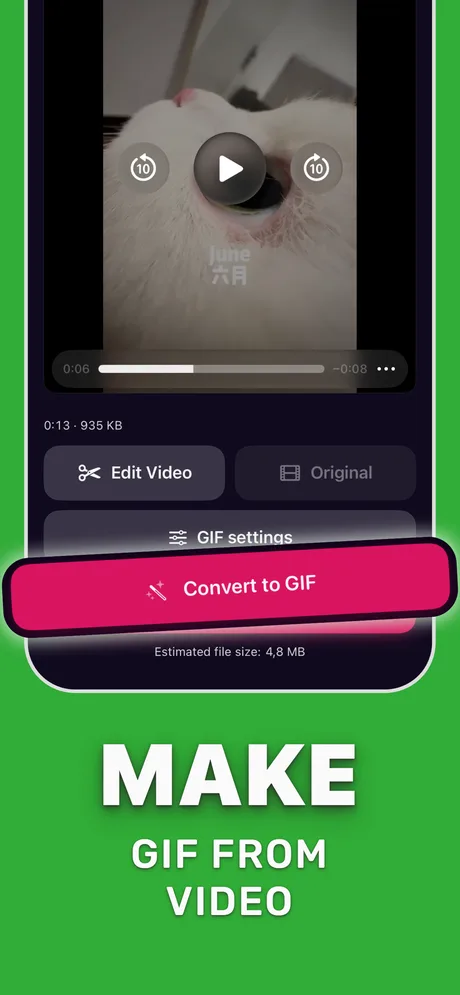
Record with Screen Recording in Control Center, then open the recording in Make Video to GIF. Trim to the interaction, crop away the status bar and empty space, set 8–12 FPS (UI rarely needs more) and use the encoder mode that favours palette detail so text stays crisp. Check the estimate against your target, for example 10 MB for GitHub, then export.
A GIF is still the easiest way to show an interaction: it plays inline in GitHub issues, pull requests, READMEs, Slack, Jira and docs, with no player and no click.
Screen recordings are also the friendliest footage for GIFs: flat colors, little noise and a lot of frames where nothing changes. Set it up right and a 6-second demo stays a few megabytes with readable text.
Record a clean clip
Add Screen Recording to Control Center (Settings > Control Center), open Control Center and tap the record button; it counts down from 3. Before recording, turn on Do Not Disturb so notifications don't appear, and close what you don't want on screen. The recording is saved to Photos when you stop it.
Settings for UI GIFs
UI changes in steps, not in continuous motion, so frames are cheap to drop:
| Setting | Recommended | Why |
|---|---|---|
| Frame rate | 8–12 FPS | Taps and transitions still read; size drops a lot |
| Crop | Remove status bar and margins | Fewer pixels, more focus |
| Encoder | Palette detail | Keeps small text and icons sharp |
| Loop | Infinite, or a few plays | Infinite for READMEs; a fixed count for step-by-step demos |
Size limits where these GIFs go
GitHub accepts images and GIFs up to 10 MB in issues, pull requests and comments. Discord's free limit is 20 MB per file. For docs and wikis, keep GIFs a few megabytes so pages load quickly.
Step by step: screen recording to GIF
About two minutes including the recording.
-
1
Record the flow
Start Screen Recording from Control Center, perform the interaction slowly once, then stop.
-
2
Open it in Make Video to GIF
Pick the recording in the app, or share it from Photos into Make Video to GIF.
-
3
Trim to the interaction
Cut the countdown and the moment you open Control Center to stop recording.
-
4
Crop and set FPS
Crop away the status bar and set 8–12 FPS; choose the palette-detail encoder for sharp text.
-
5
Export and attach
Convert to GIF, then drag it into the issue, README or Slack thread, or share it from the share sheet.
Do it in Make Video to GIF
Free on the App Store. Pick a clip, trim, tune, export.
Tips
- Move slower than usual while recording; a GIF has no pause button.
- Use a plain wallpaper and light mode or dark mode consistently across GIFs in the same doc.
- Name the file after the bug or feature before you attach it; it helps people searching later.
Questions people also ask
What is the GIF size limit on GitHub?
GitHub accepts images and GIFs up to 10 MB in issues, pull requests and comments; videos can be up to 100 MB.
Why is the text in my GIF blurry?
GIF has 256 colors per frame and resizing softens text. Crop instead of scaling down, and use the encoder mode that favours palette detail.
Can I record the screen with sound for a GIF?
GIFs have no sound, so turn the microphone off; the recording's audio is dropped anyway.
Only convert videos you have the right to share. Make Video to GIF is an independent app and is not affiliated with Apple, GIPHY, Discord or Slack.